
Your screen-by-screen guide
The PSCA surveys and your plan's benchmarks, inside Knowa.
Three years of the Plan Sponsor Council of America's annual survey, Knowa Q to answer your questions from the report, and a dashboard that sets your own plan beside plans like it. Here's how it all works.
Step 01
Get in
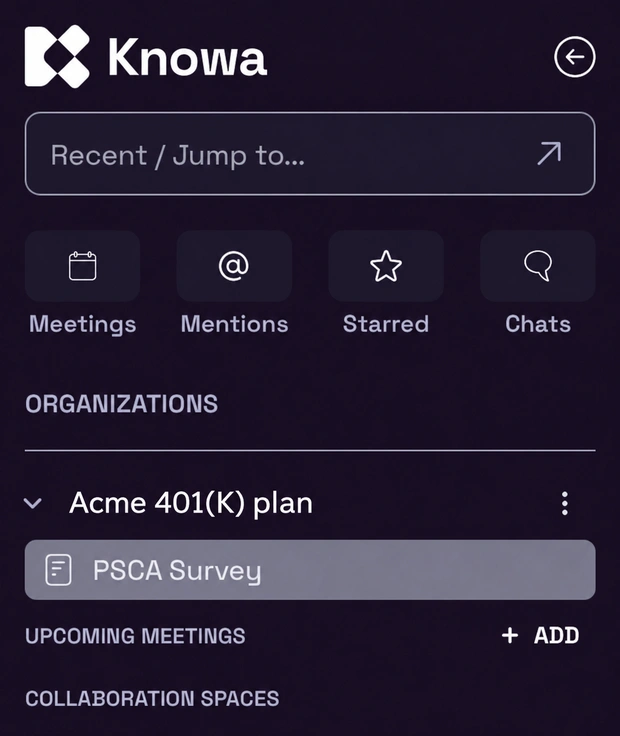
PSCA Survey lives inside Knowa. You'll find it in the Knowa sidebar, alongside your other Knowa tools. How you get there the first time depends on whether you already use Knowa.
You already use Knowa
Click PSCA Survey in the Knowa sidebar, under your organization's name. You're signed in already, with no extra password, and you see your own organization's plan.
You're new to Knowa
Start from the invitation link Knowa sent you to get set up. After that, PSCA Survey is always in your Knowa sidebar.
A short welcome video
The first time you visit, a short video shows what's inside. When it ends, the two ways in open: Open Your dashboard and Read the full report. Next time, they're available right away.
Two views, one tab row
Survey results is your plan's dashboard. Full report is the complete survey, page by page. Switch between them at the top left of the page.
Open Knowa US ↗Step 02
Three years of PSCA surveys
Every year PSCA surveys 401(k) and profit-sharing plans across the US. Each edition reports on the plan year before it. The 2024, 2025 and 2026 editions are all here, page for page, as published.
69th Annual Survey
2025 plan-year data
Current edition68th Annual Survey
2024 plan-year data
Reference67th Annual Survey
2023 plan-year data
Reference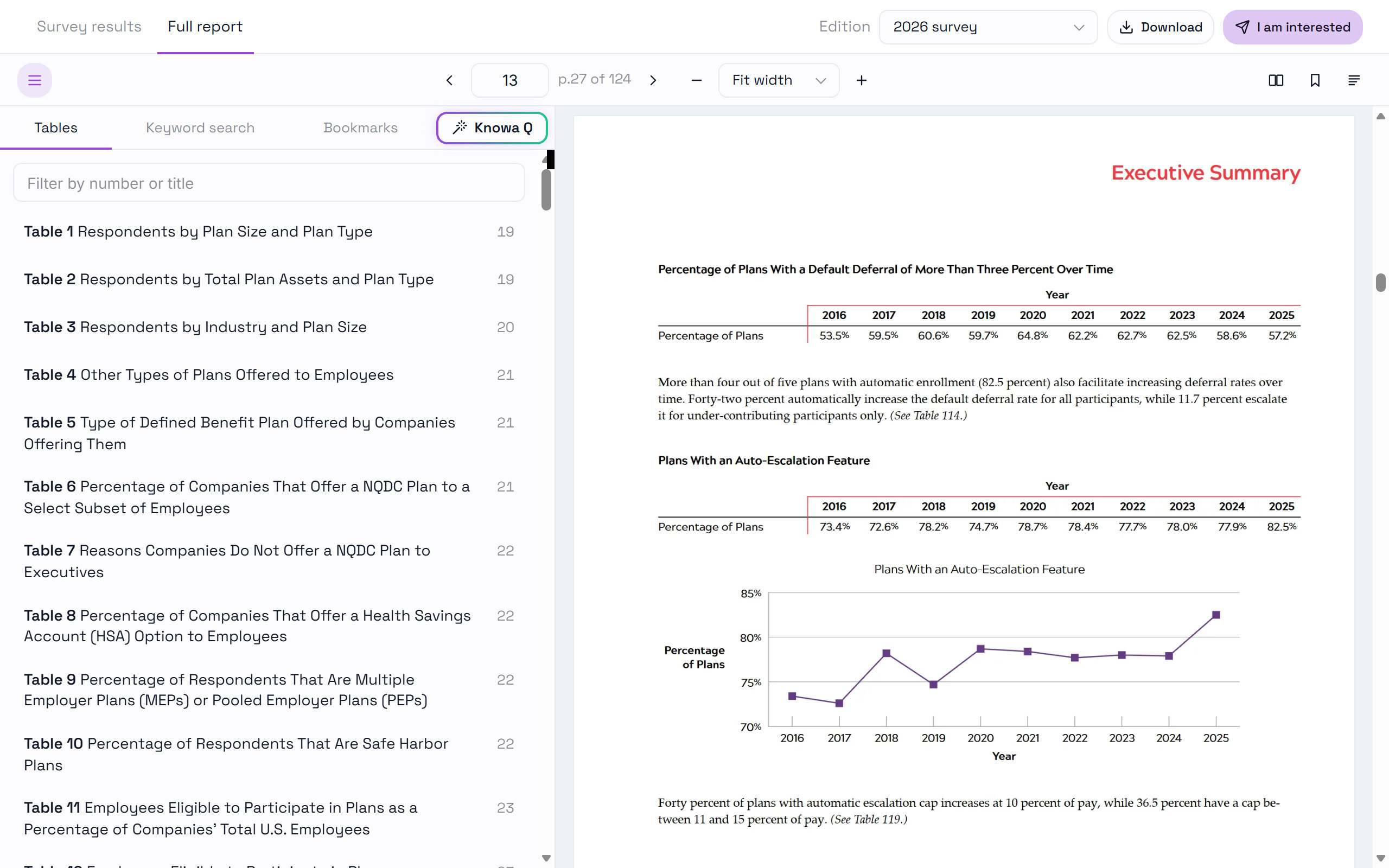
- Survey results / Full report
- Switch between your dashboard and the report.
- Edition
- Pick the 2026, 2025 or 2024 survey.
- Side panel
- Show or hide the navigation panel.
- Page and zoom
- Type a page number, step through pages, fit to width or zoom.
- Bookmark
- Save the page you're on.
- Tables
- Every numbered table, by title. Select one to open its page.
- Download
- Save or print PSCA's PDF of the selected survey edition.
- I am interested
- Open a short form to hear more about Knowa.
Your benchmarks always use the current edition. The earlier two are there to read and compare.
Step 03
Ask Knowa Q in plain English
Knowa Q is the AI search built into the report. Ask a question the way you'd ask a colleague, and it answers from the survey's own pages, with a link to every page it used.
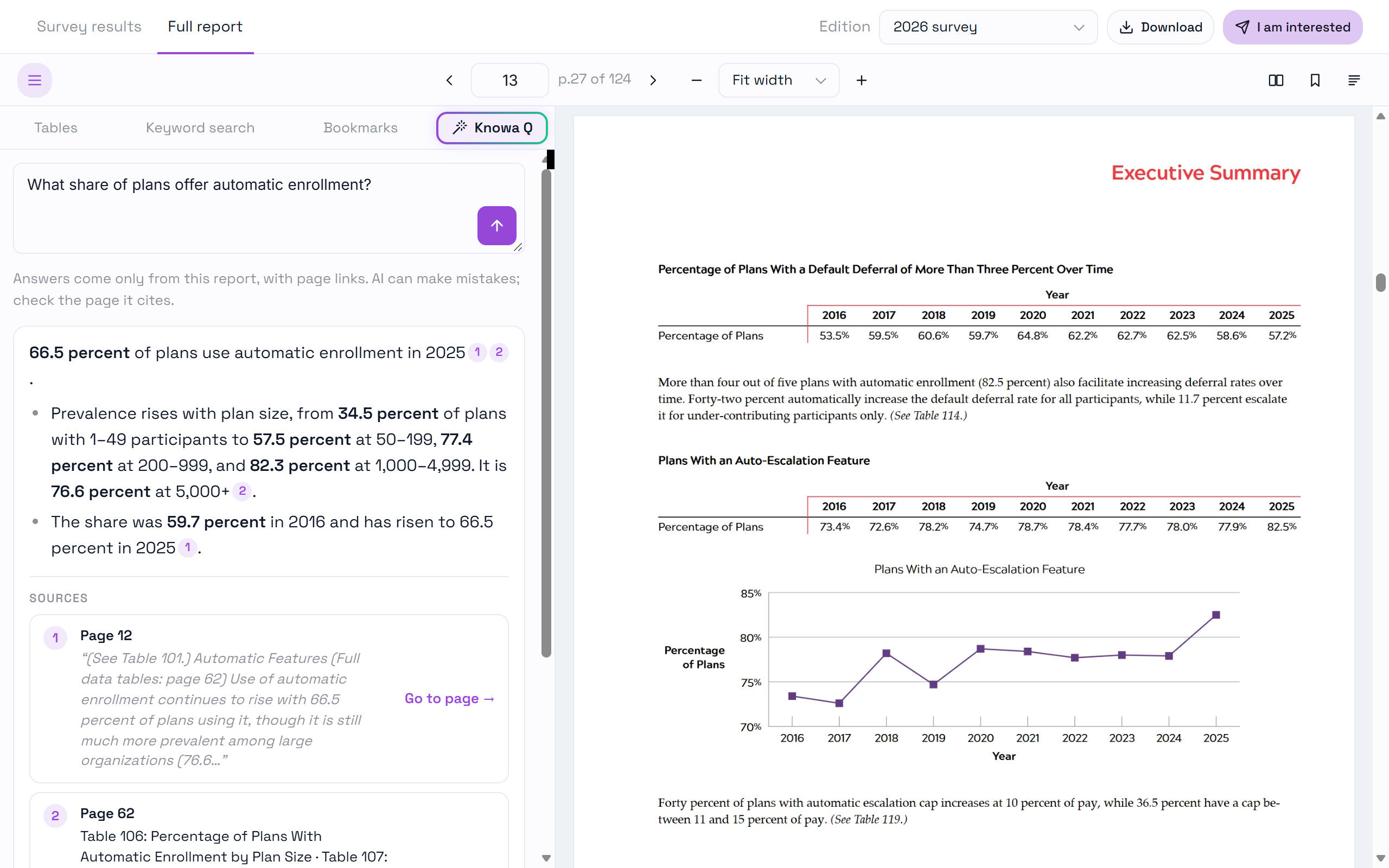
- Open the Knowa Q tab in the side panel. On your dashboard it's called Ask the report.
- Enter your question in plain English.
- Read the answer. Key figures appear in bold, with small numbers linking to the pages used.
- Under Sources, select Go to page to check a figure in the report.
It answers from the report
Compare years too. Try: “How has automatic enrollment changed since last year?”
It doesn't give advice
Ask “Should my plan add automatic enrollment?” and it shares relevant data points instead of a recommendation.
It stays on topic
Questions outside the survey get a pointer back to the report. If the report doesn't cover it, Knowa Q says so.
Like any AI, Knowa Q can make mistakes. Use the page links to check the source.
Step 04
Find your way, and keep your place
Two more tabs in the side panel help you move around the report.
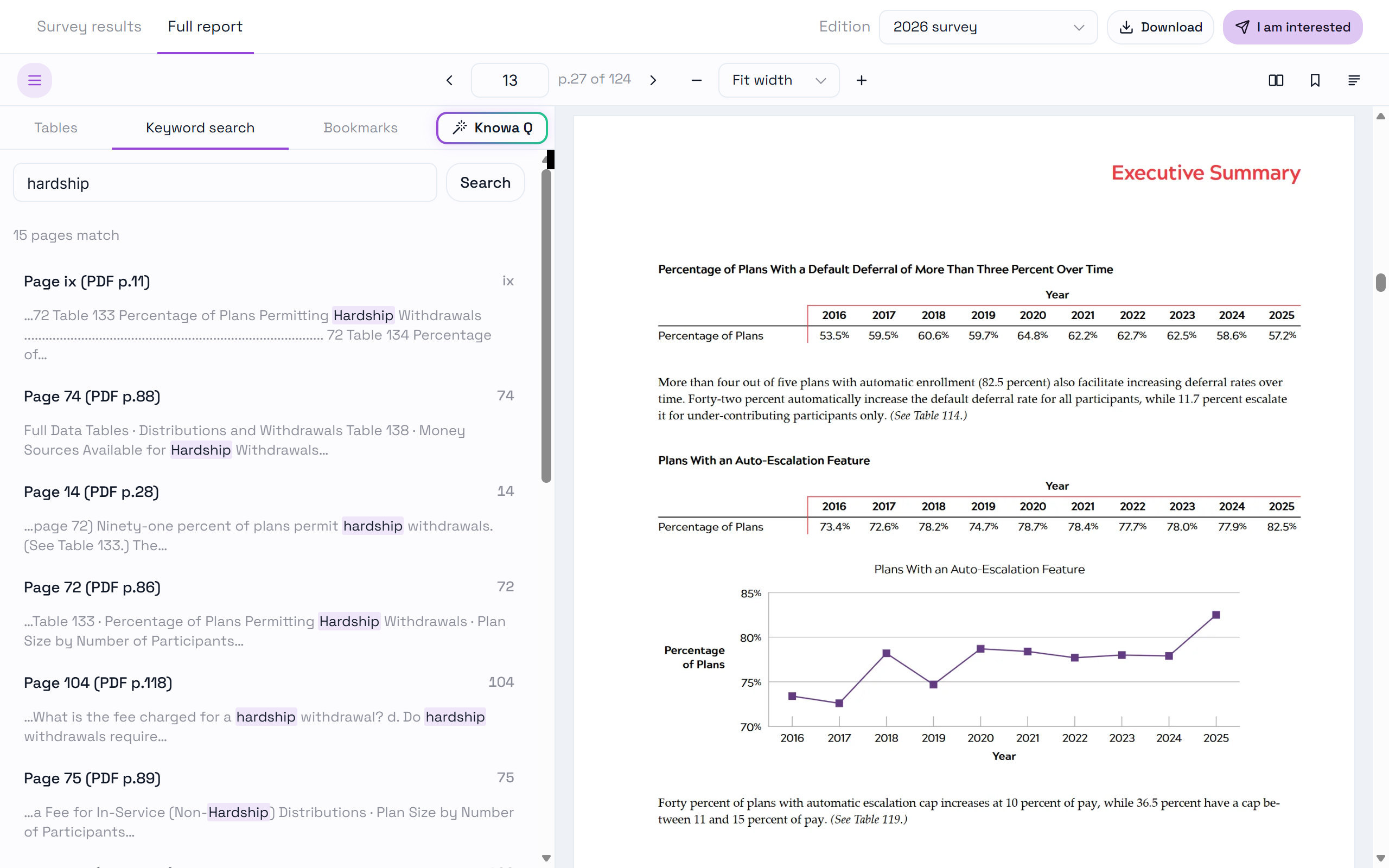
Keyword search
Open the tab, type a word such as hardship, then select a result to jump to that page. Shortcut: /.
Bookmarks
Select the bookmark button or press B, then open the Bookmarks tab to jump back to a saved page.
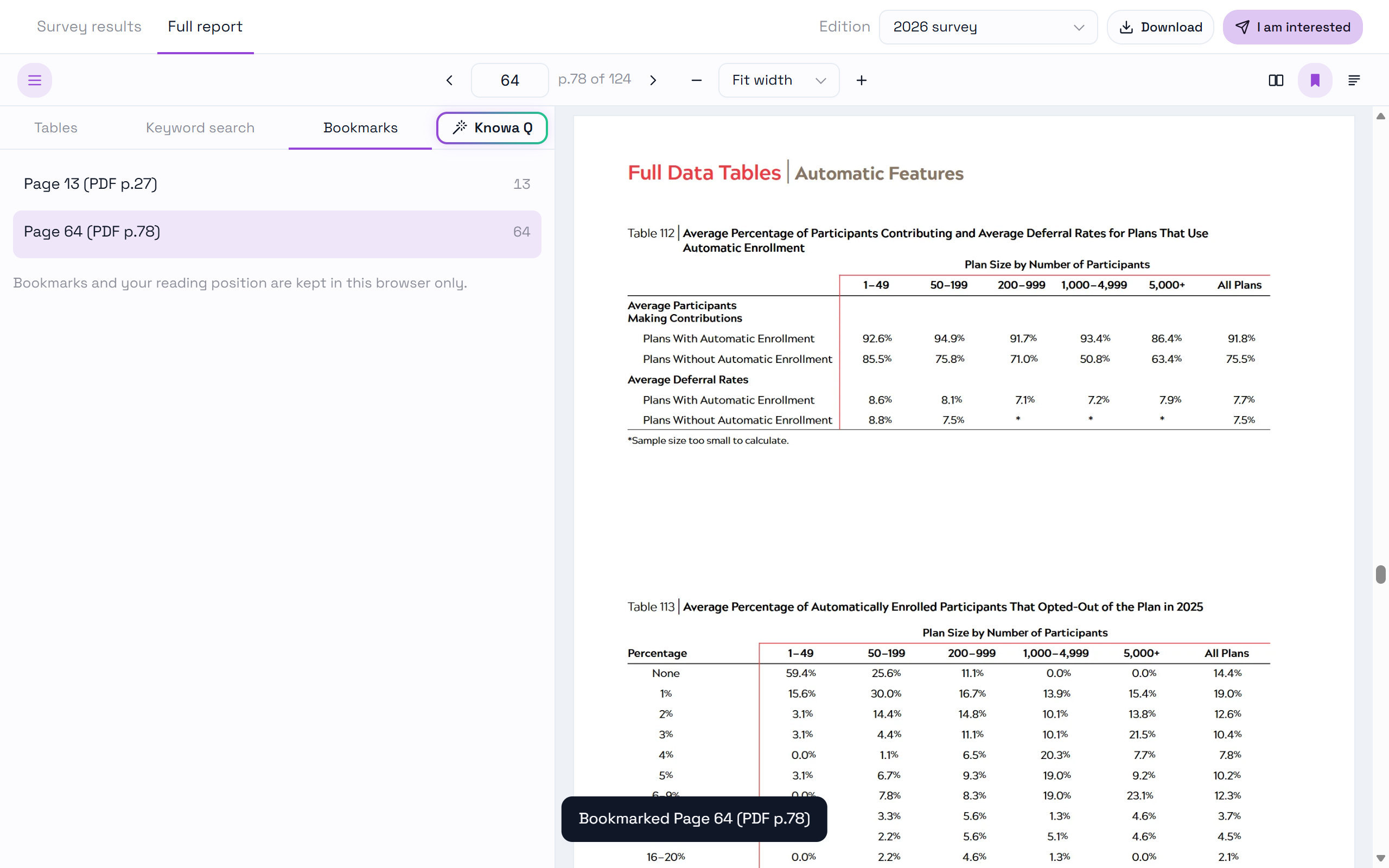
The report also remembers the page you were reading in each edition. Bookmarks and your place are kept in this browser.
Step 05
Your plan, benchmarked
Survey results sets your plan's answers beside the survey. Ten cards cover the measures sponsors ask about most, always in the same order.
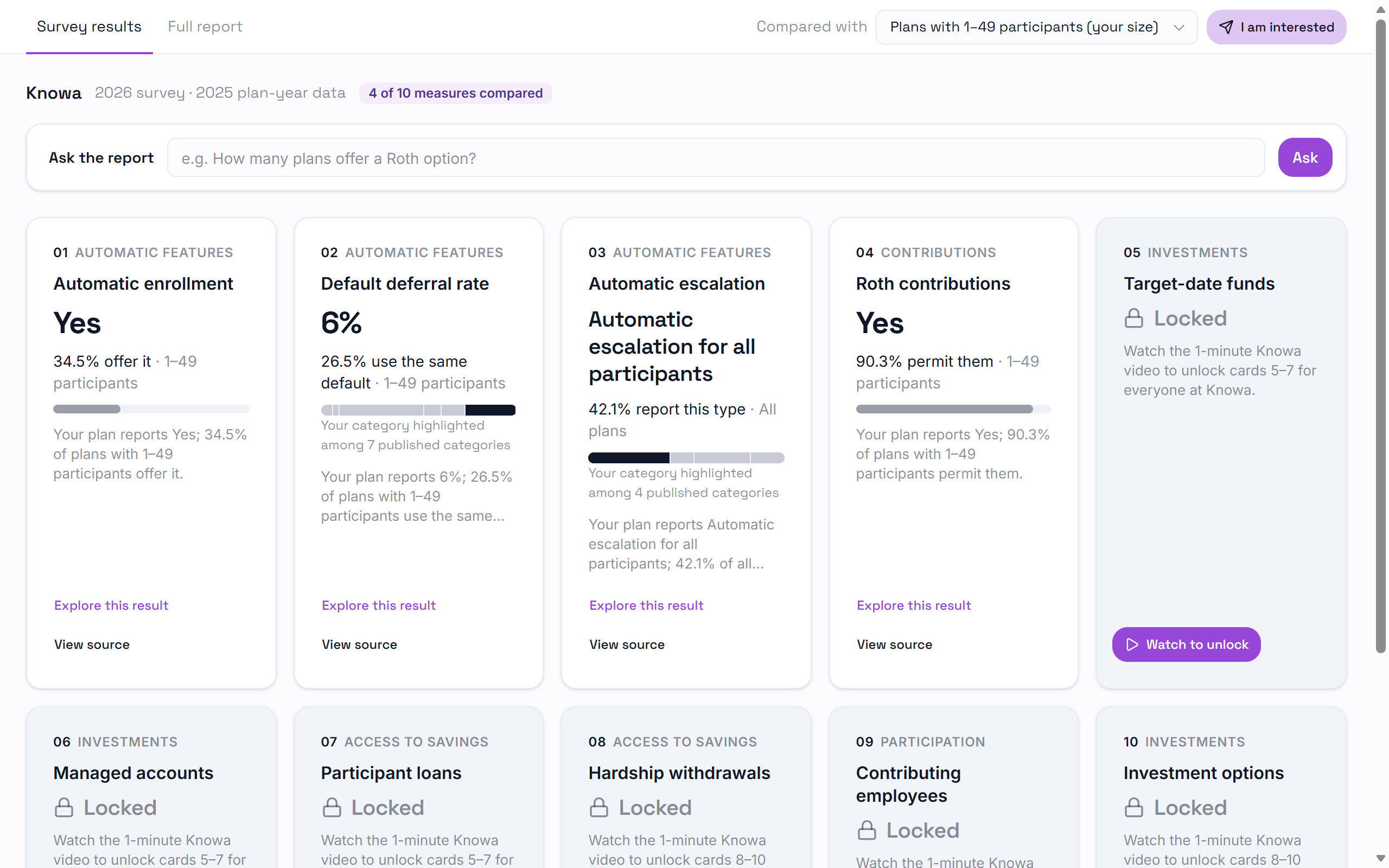
- Compared with
- Choose all plans or plans of a given size. Your own size is marked.
- Ask the report
- Use Knowa Q directly from your dashboard.
- Your plan's answer
- See your plan's response, such as Yes, 6% or a plan feature.
- The survey's figure
- See the figure for the plans you're compared with, with a bar to show where you sit.
- Explore this result
- Read an explanation of the comparison. View source opens the report at the relevant table.
- Locked cards
- Open the remaining cards by watching the short videos in step 6.
Always open
- Automatic enrollment
- Default deferral rate
- Automatic escalation
- Roth contributions
After video 1
- Target-date funds
- Managed accounts
- Participant loans
After video 2
- Hardship withdrawals
- Contributing employees
- Investment options
Step 06
Unlock the full set
Cards 1 to 4 are open from the start. The other six open in two groups, each after a short Knowa video.
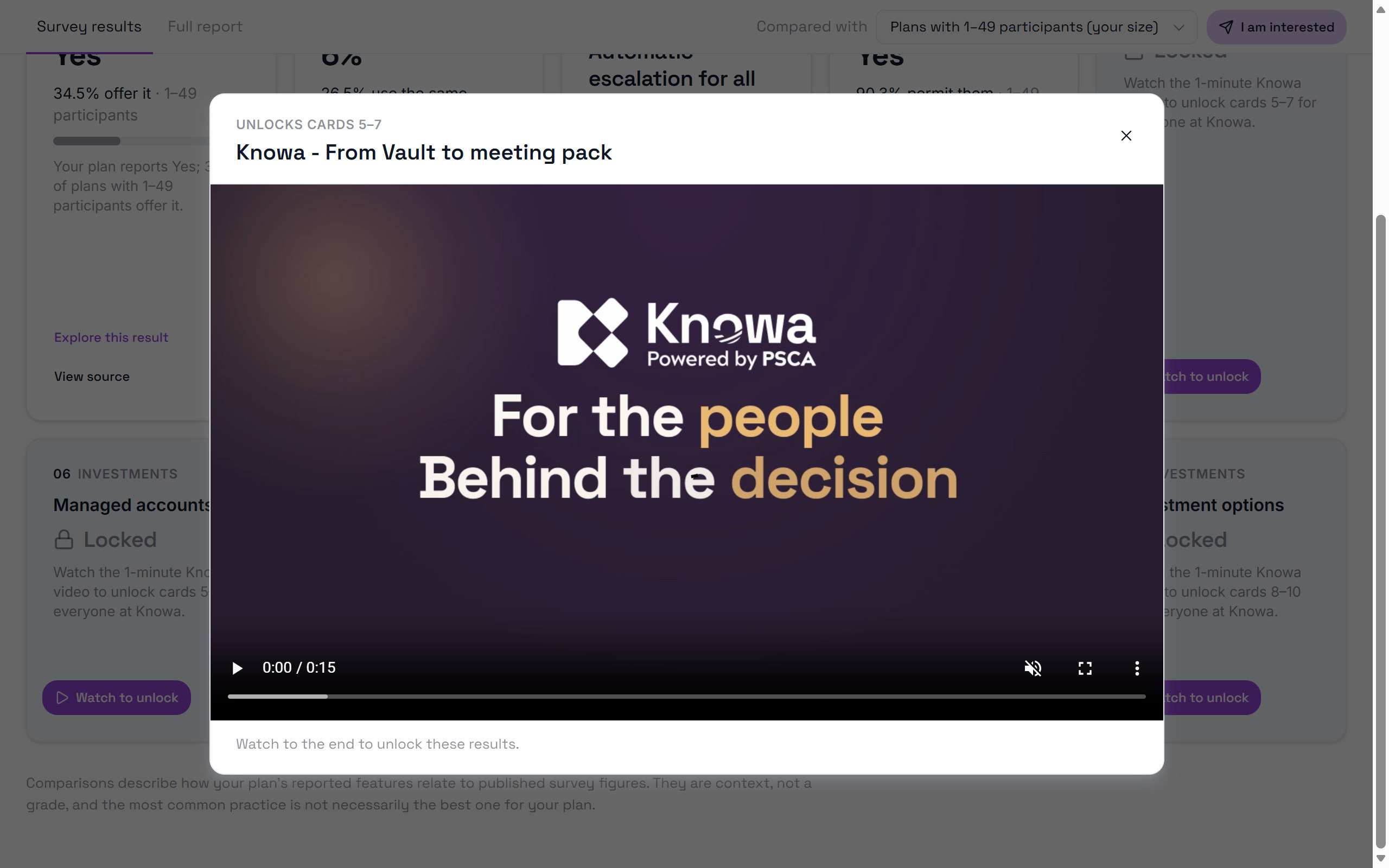
Press Watch to unlock
Each locked card shows how long its video runs. The video opens right on the dashboard.
Watch to the end
Skipping ahead doesn't count. If you close it early, start again whenever you like.
The cards open for everyone
Once one person at your organization has watched a video, its cards stay open for all your colleagues.
The full report and Knowa Q are never locked. The survey's own figures for every measure are always there to read.
A little more help
Quick answers
Who can see my plan's figures?
Only people in your organization, through Knowa. Other organizations never see your answers, and your plan's figures are never sent to the AI. Knowa Q only reads the published survey pages.
Why does a card say there's no comparison?
Some measures have no published figure for a group, or your plan's answer is missing. The card stays in place and Why no comparison? explains the reason.
Can Knowa Q tell me what my plan should do?
No. Knowa does not provide advice. For questions like that, Knowa Q shares the report's data points that relate to your question, each with its page.
Can I keep a copy of the survey?
Yes. Open Full report and select Download at the top right to save PSCA's PDF of that edition.
Where did my bookmarks go?
Bookmarks and your reading position are saved in the browser you used. On another computer or browser, or after clearing your browser data, they start fresh.
I'd like to talk to someone about Knowa
Use I am interested to tell PSCA, and they'll be in touch.
Screens from PSCA's 69th Annual Survey (2025 plan-year data). The dashboard is shown with a test plan. Guide updated November 10, 2026.
Back to the top ↑